Key Takeaways
- The Amazon Search Term Report shows what shoppers searched before clicking an ad, while the targeting report shows how each keyword or product target you bid on performed.
- The search term report lists only terms with at least one ad click, while the targeting report lists every target with at least one impression.
- Use the search term report to find new keywords and wasted spend, and the targeting report to change bids and targets.
- One target can catch many search terms, so a healthy target average can hide one excellent query and several wasteful ones.
- Download the search term report on a schedule, because Amazon’s console help gives it a 65-day lookback for Sponsored Products.
The Amazon Search Term Report shows the searches shoppers typed before clicking your ad, while the targeting report shows how each keyword, product or automatic target you bid on performed, so the first explains demand and the second controls bids. On this page, both reports mean the Sponsored Products versions in the Amazon Ads console, with notes where Sponsored Brands and Sponsored Display differ. The distinction matters because changing a bid on the wrong layer, or adding a negative from too little data, can cut a converting search term along with the waste. This page compares the two reports, explains what each row means, and sets out the weekly workflow Clear Ads uses with both.
What is the difference between the two reports?
The search term report answers “what did the shopper search?”, and the targeting report answers “which target did I bid on, and how did it perform?”. The table compares the Sponsored Products versions of both.
| Dimension | Search term report | Targeting report |
|---|---|---|
| Question it answers | What did the shopper search before clicking? | Which target was eligible, and how did it perform? |
| Rows included | Terms with at least one ad click | Targets with at least one impression |
| Key field | Customer search term | Keyword or targeting expression |
| Best for | Finding new keywords, negatives and shopper intent | Changing bids, expanding targets and judging each target |
| Console lookback (Sponsored Products) | 65 days | 90 days |
| Time units | Summary or daily | Summary or daily |
The lookbacks come from Amazon’s console help as of October 2026. API limits are different: Amazon’s version 3 reporting documentation lists a maximum request range of 31 days, with retention that varies by ad product and report type. Note whether a rule refers to the console or the API before you rely on it.
The search term report is covered in depth in the Amazon Search Term Report guide, and the targeting report in the keyword performance report guide.
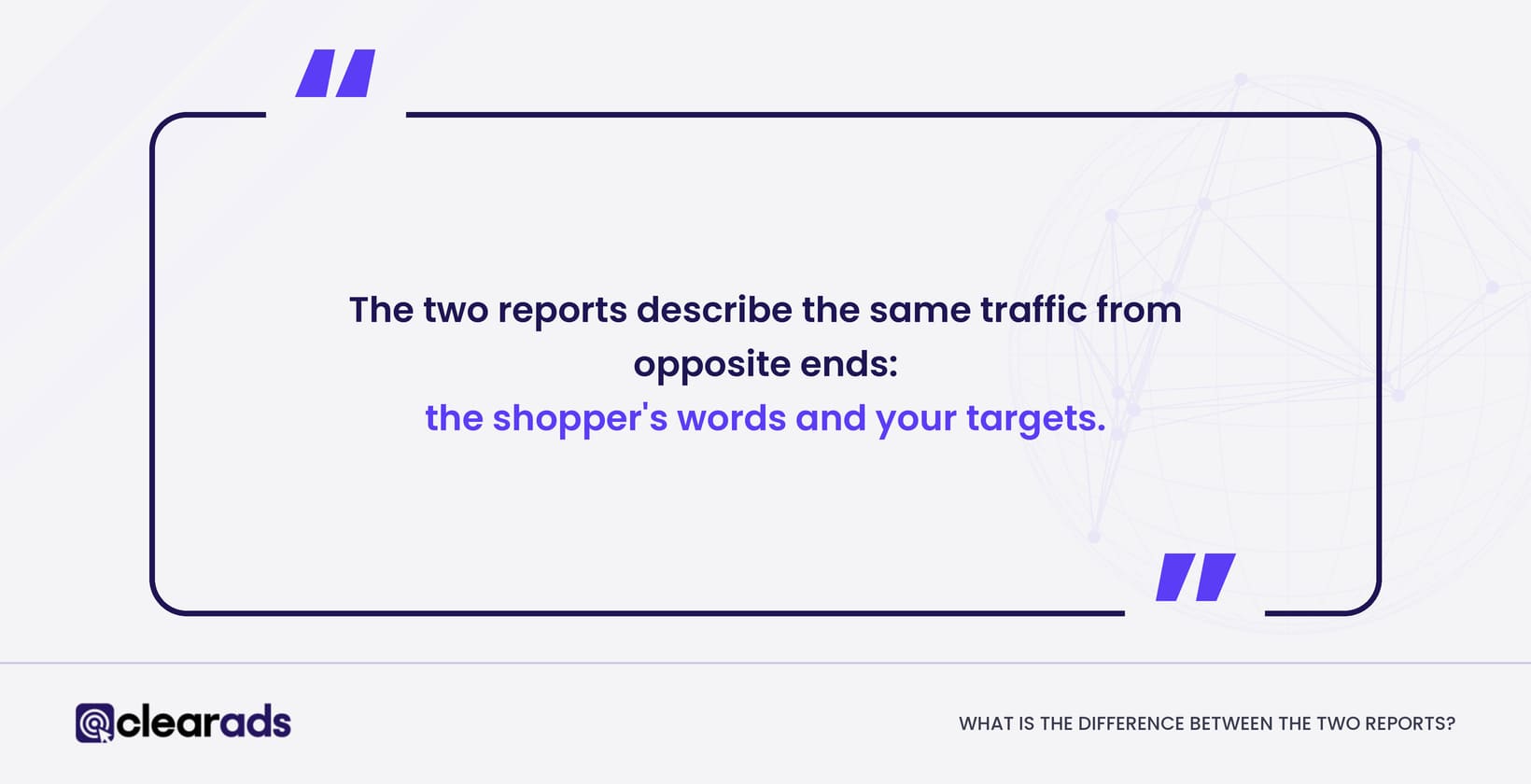
The two reports describe the same traffic from opposite ends: the shopper’s words and your targets.
How do targets, match types and search terms relate?
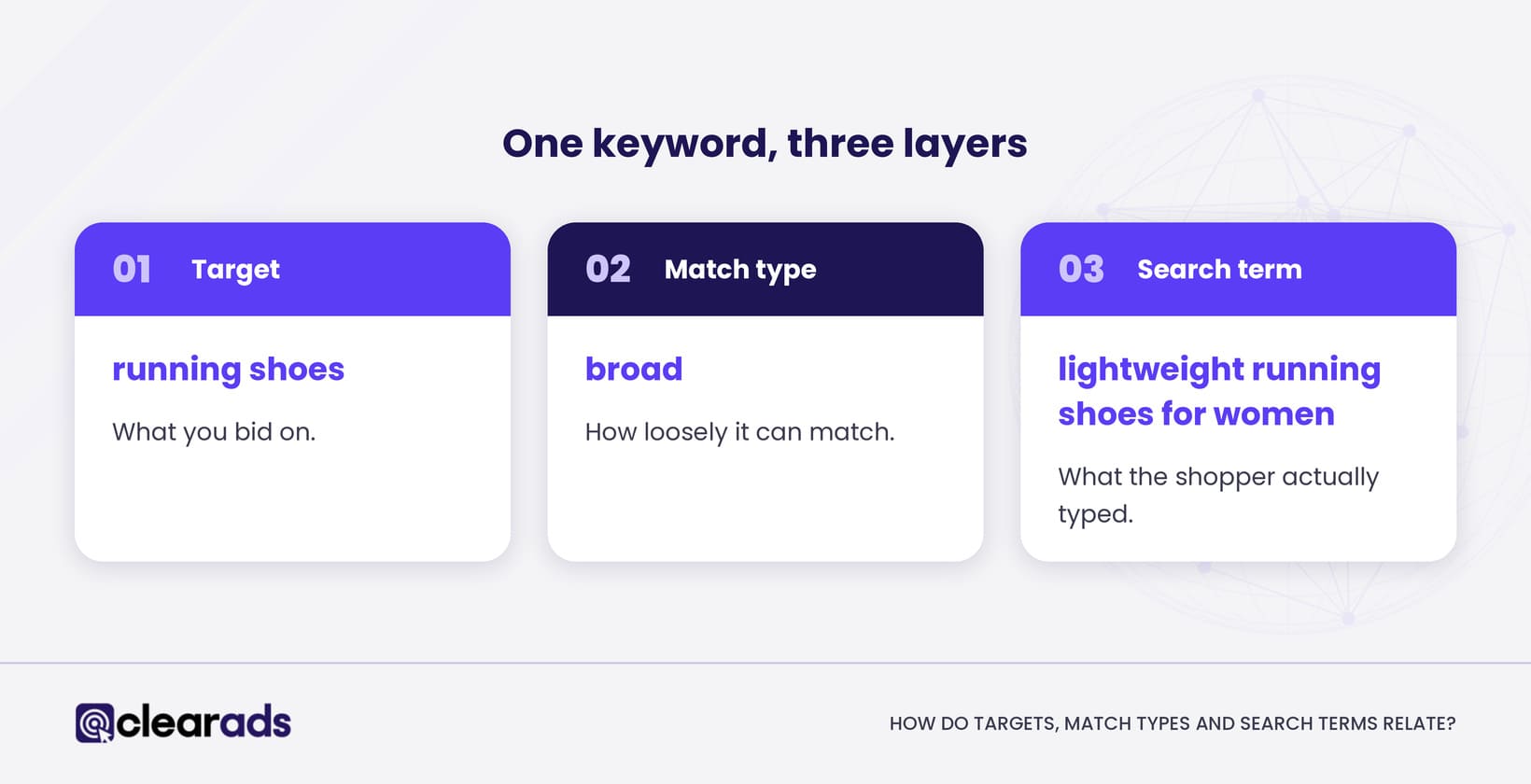
A target is what you bid on, a match type sets how loosely it can match, and a search term is what the shopper actually typed. Consider a Sponsored Products ad group with the broad-match keyword “running shoes”:
- Target: running shoes.
- Match type: broad.
- Customer search term: lightweight running shoes for women.
You control the target and its bid; the search term is the shopper behaviour that the target caught. One target can therefore produce many search terms, and one search term can be caught by several targets across an account. How broad, phrase and exact match decide what a keyword catches is explained in the Amazon match types guide.
Automatic campaigns use targeting groups instead of keywords. Amazon’s automatic targeting can match close match, loose match, substitutes and complements, and these appear in reports as targeting expressions rather than as words a shopper typed. Their search terms are covered in the automatic targeting search term report guide.
Bids act on targets, while shoppers act through search terms, and every decision has to keep the two apart.
What does the search term report show?
The search term report shows each customer search term that led to at least one ad click, together with the campaign, ad group, target and match type that caught it. Typical fields include:
- Campaign and ad group.
- Targeting and match type.
- Customer search term.
- Impressions and clicks.
- Click-through rate and cost per click.
- Cost.
- Purchases, sales, ACoS and ROAS.
- Promoted, halo or attribution-window versions of the sales fields, where selected.
Because terms without a click are left out, the report’s impressions do not add up to the campaign’s total impressions in Campaign Manager. Read it for what shoppers did after seeing the ad, and use Campaign Manager for the full count of where the ad appeared.
The search term report is the place to find both new keywords and wasted spend.
What does the targeting report show?
The targeting report shows the performance of every keyword, product target, category target and automatic targeting group that received at least one impression. For Sponsored Products, that covers broad, phrase and exact keywords plus product and automatic targeting expressions. Typical fields include:
- Campaign and ad group.
- Keyword or targeting expression.
- Keyword type and match type.
- Target bid and status, where available.
- Impressions, clicks, click-through rate and cost per click.
- Cost, purchases, sales, ACoS and ROAS.
- Top-of-search impression share.
Amazon defines top-of-search impression share as the percentage of top-of-search impressions a target received, compared with the number of times it was eligible to appear there. A low share on a target that converts well points to a bid that is too low for that placement.
Product and category targets are covered separately in the product attribute targeting report guide.
The targeting report is where bid decisions are made, because the bid lives on the target.
How do you use both reports together each week?
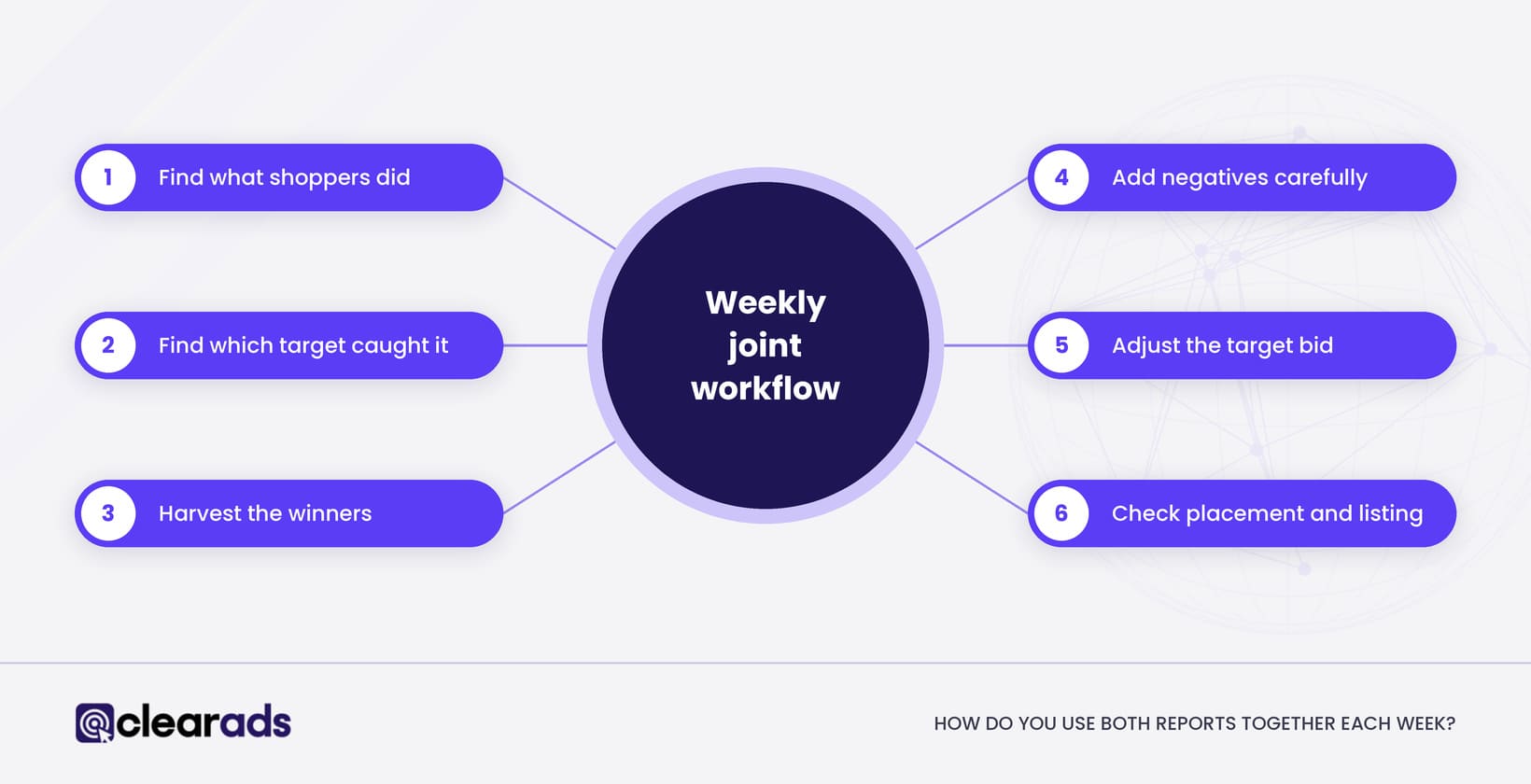
Use both reports together by finding what shoppers did in the search term report, tracing it to the target in the targeting report, and only then changing bids, adding keywords or adding negatives. This is the joint workflow Clear Ads recommends, in this order.
Find what shoppers did
Export the search term report for a settled period, at least as long as the attribution window. Group the same term across campaigns where that helps, but keep the campaign and target for each row, because the action happens there. Sort the terms into six groups:
- Profitable and ready to scale.
- Converting but above the target ACoS.
- Relevant but too early to judge.
- High spend with no purchase.
- Clearly irrelevant.
- ASINs from product detail pages, which need a product targeting review.
Find which target caught it
For each important search term, check the target and match type behind it. A weak target can hide one strong query among many poor ones, and a strong target can rest on two or three excellent queries.
Harvest the winners
Move proven search terms into exact match or product targeting where that gives better control of bids, budget or reporting. Decide how the discovery campaign and the exact campaign will be kept apart, so the same term does not compete against itself.
Add negatives carefully
Add a negative exact keyword for a single poor search term when the parent target is still worth keeping. Use negative phrase only when the whole phrase is irrelevant, because it blocks every variation that contains it. ASINs need negative product targets rather than negative keywords.
Adjust the target bid
Use the targeting report to change the bid on the keyword, product, category or automatic group. Base the change on the target’s economics, after checking that one unusual search term is not distorting its average.
Check placement and the listing
A high cost per click or a weak conversion rate is not always a targeting problem. Check placement, price, stock, reviews and the detail page before cutting the same bid week after week.
Worked example
A broad-match target for “protein shaker” shows $600 (USD) of sales from $150 (USD) of Cost, a 25% ACoS. At target level it looks fine. The search term report shows what sits underneath. The figures are teaching figures, not account data.
| Search term | Cost (USD) | Sales (USD) | ACoS | What it means |
|---|---|---|---|---|
| protein shaker bottle | 70 | 420 | 16.7% | Strong query; move it to exact match |
| glass protein shaker | 45 | 0 | n/a | Poor fit for a plastic product; add as a negative |
| gym shaker | 25 | 150 | 16.7% | Profitable new term; add it as a keyword |
| shaker replacement lid | 10 | 30 | 33.3% | Relevant but weaker; monitor or bid separately |
The target’s 25% average hid both the best growth term and $45 of avoidable waste. The joint action is to harvest the two strong terms, block the irrelevant one, and then reassess the broad target’s bid.
Read the search terms before you touch the target, and the target before you touch the bid.
What mistakes do advertisers make with these reports?
The most common mistake is treating the keyword you bid on and the search term the shopper typed as the same thing. The full list:
- Treating the target and the search term as interchangeable.
- Adding negatives from too little data.
- Pausing a profitable target because one of its search terms is poor.
- Raising a target’s bid without checking which search terms produced its sales.
- Expecting search term report impressions to match Campaign Manager.
- Treating an ASIN in the search term column as an error.
- Assuming the console and the API keep the same history.
- Downloading irregularly and losing search term history after the lookback passes.
Each of these comes from reading one report without the other.
Frequently asked questions
Why do ASINs appear as customer search terms?
An ASIN appears when your ad was shown on a product detail page or through product targeting, and a shopper clicked it there. Amazon documents this for automatic and product-targeted activity, so the ASIN is a real placement, not corrupt data.
Why does the same search term appear under several targets?
Several keywords, match types or campaigns can match the same search. Check which target converts it best, then use negatives to route the term to that target so your own campaigns stop competing for it.
Is there a search term report for Sponsored Brands?
Yes. Sponsored Brands has its own search term report, explained in the Sponsored Brands search term report guide.
Is there a search term report for Sponsored Display?
No. Amazon’s list of downloadable reports includes targeting reports for Sponsored Display but no shopper search term report, because Sponsored Display targets audiences, products and categories rather than searches.
Do negative keywords appear in the targeting report?
No. The targeting report is built around targets that received impressions, so keep a separate list of negatives, for example from a bulk operations file, rather than relying on it as a full record.
What does this page not cover?
This page compares the two reports and leaves four topics to other pages:
- Negative keyword strategy and match type planning: Amazon PPC keyword research and management.
- How negative keywords stop wasted spend: how Amazon negative keywords work.
- Automatic campaign search terms in depth: the automatic targeting search term report.
- Product and category targeting: the product attribute targeting report.
What is the next step?
Schedule a weekly search term report and a weekly targeting report for the same campaigns, then run the joint workflow on your highest-spend campaign first. Keep every export, because the search term history disappears from the console after the lookback. The Amazon advertising reports hub shows how these two reports fit with the rest.
If your account has more search terms than your team can review each week, Clear Ads Amazon PPC management reviews search terms and targets across every campaign, so new keywords are harvested and waste is cut without blocking the terms that sell.